Welcome to GOLDEN FLOW — a worldwide growing community of successful copytraders. Follow these 3 easy steps to get started with the 24× SONIC strategy.
Click on the COPY-X Partner Link that someone shared with you and sign up.
‼️ IMPORTANT: Only with this referral link you'll get the 24× amplification. Without it, you'll receive the standard 12×.
Fill in all the fields on the registration form:
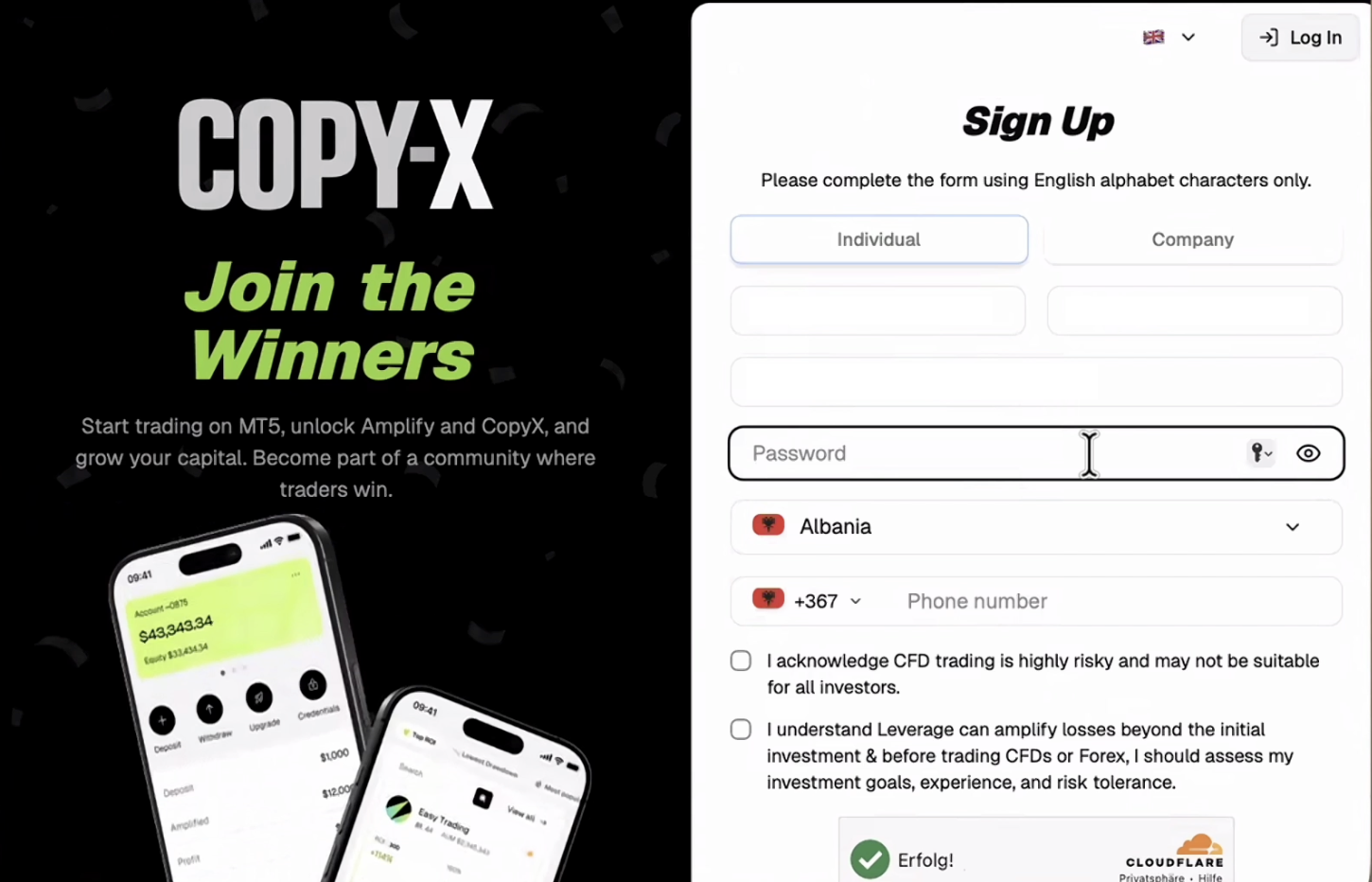
COPY-X sign-up form — fill in all fields and click "Register Now"
After registering, a confirmation appears. Check your email (including your spam folder) for the verification message.
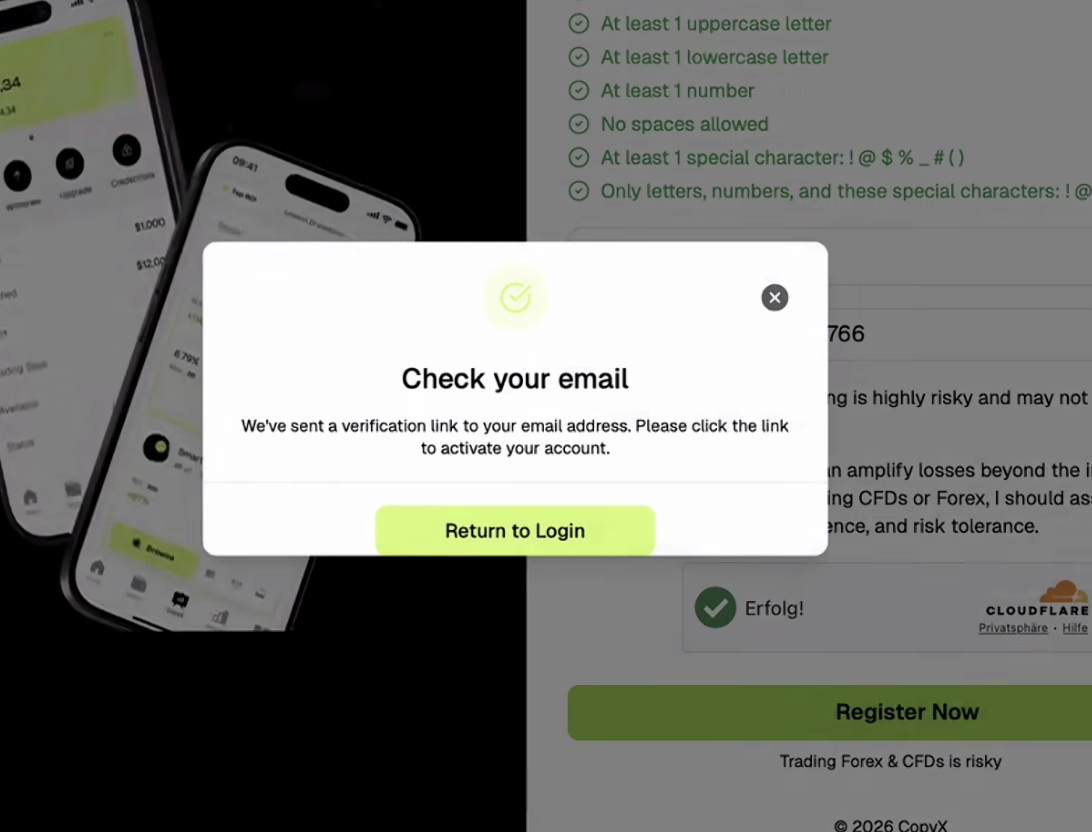
COPY-X confirms that the verification link has been sent
Open the verification email and click "Verify Account".
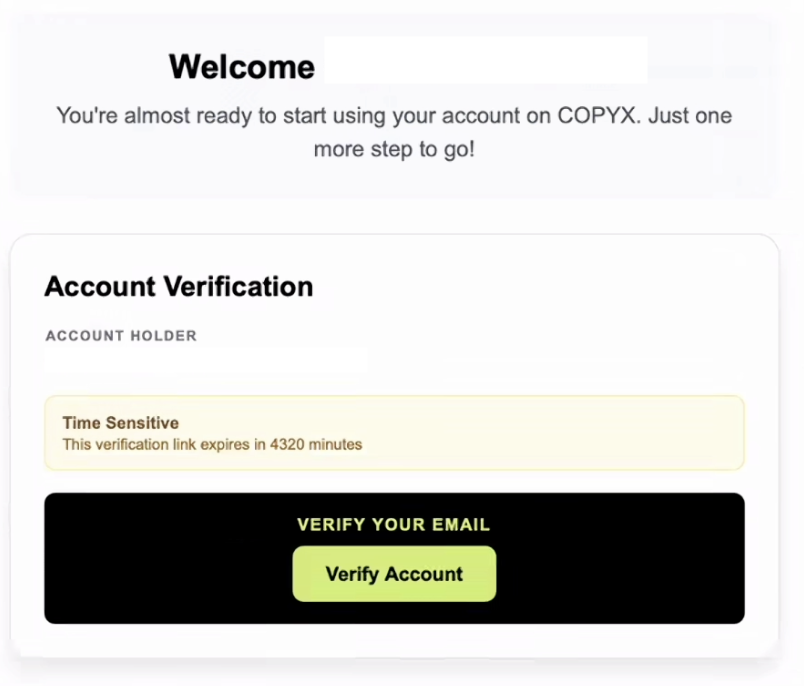
Click "Verify Account" to activate your COPY-X account
Once the email is verified, click "Continue to Login".

Email verified — continue to the COPY-X login page
Log in using the email address or username and password you just created.
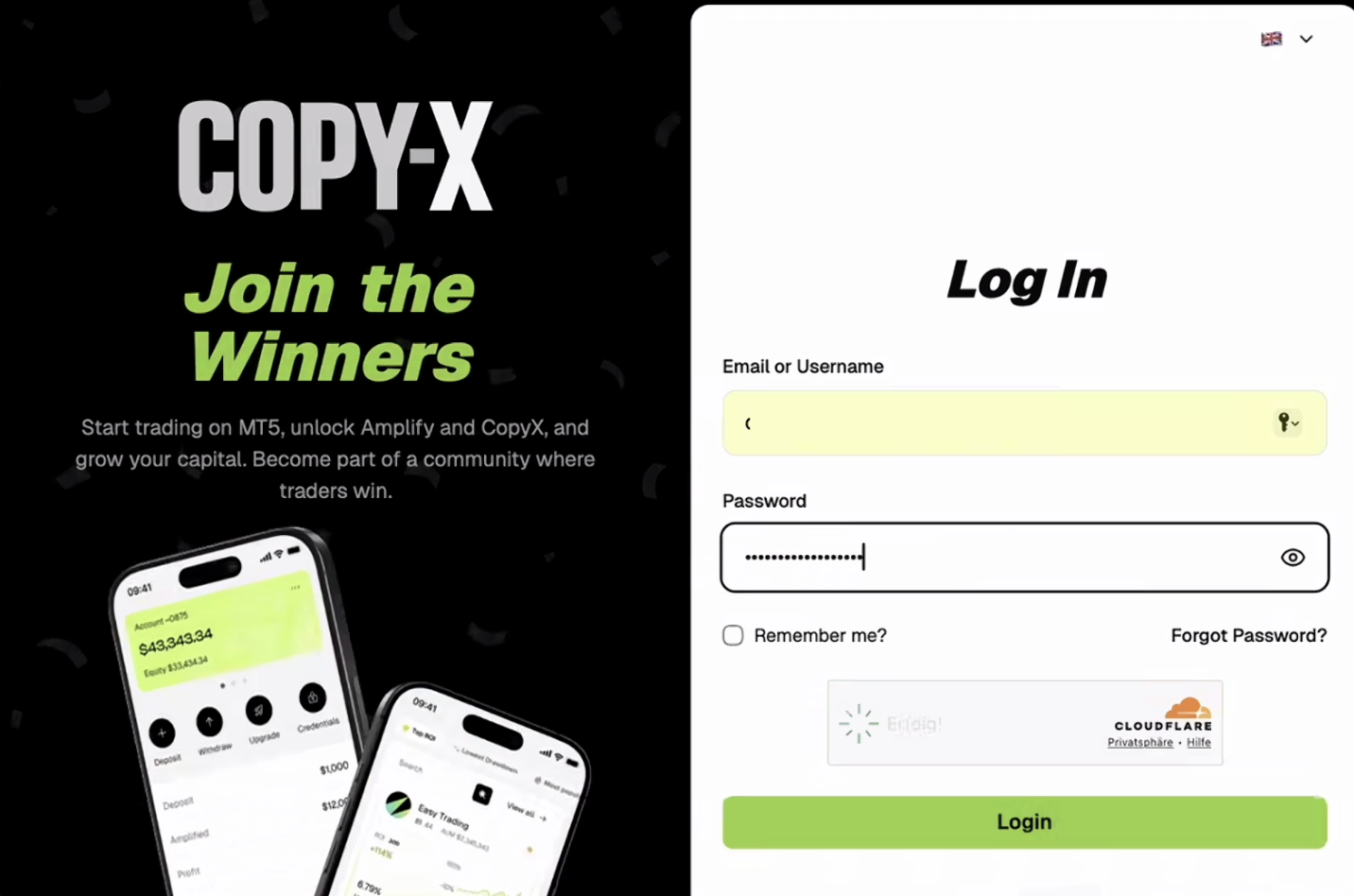
Enter your credentials and click "Login"
Before accessing your profile, COPY-X asks you to complete a short suitability questionnaire. Select one answer for every question.

Start the suitability survey and select an answer for each question
Review your answers and click "Submit" to finish the survey.
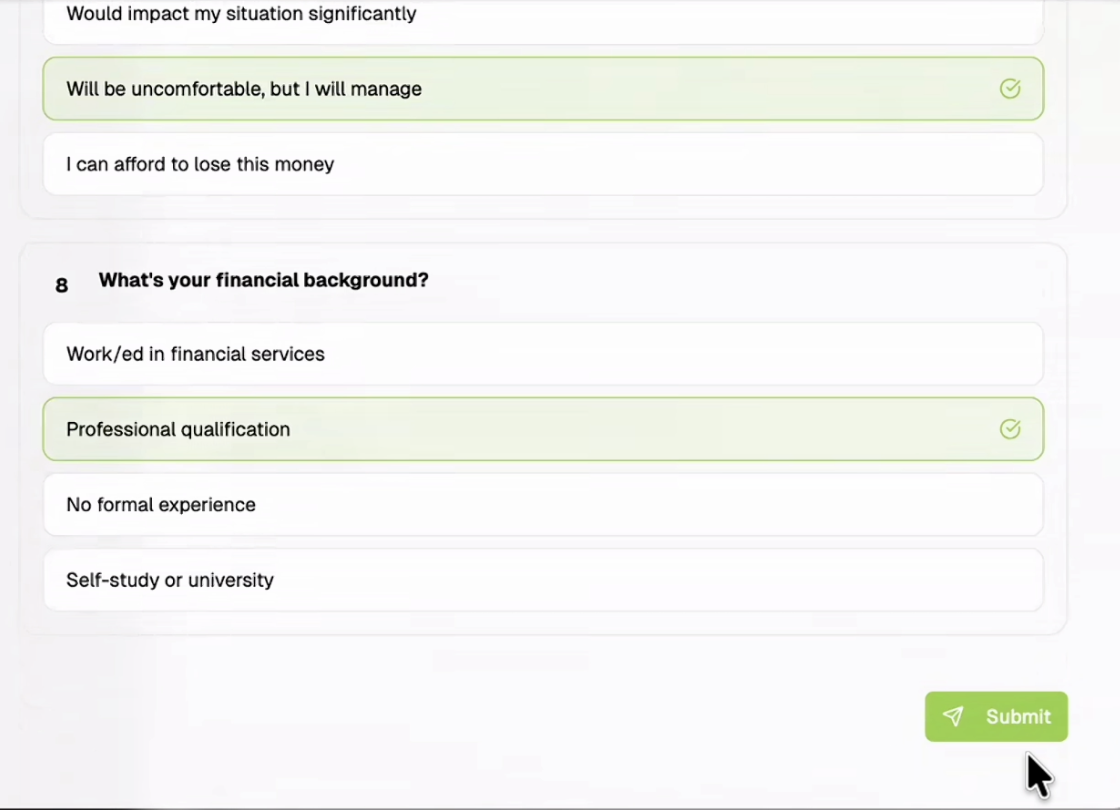
Complete the questionnaire and click "Submit"
After the survey is submitted, your COPY-X profile page is available.
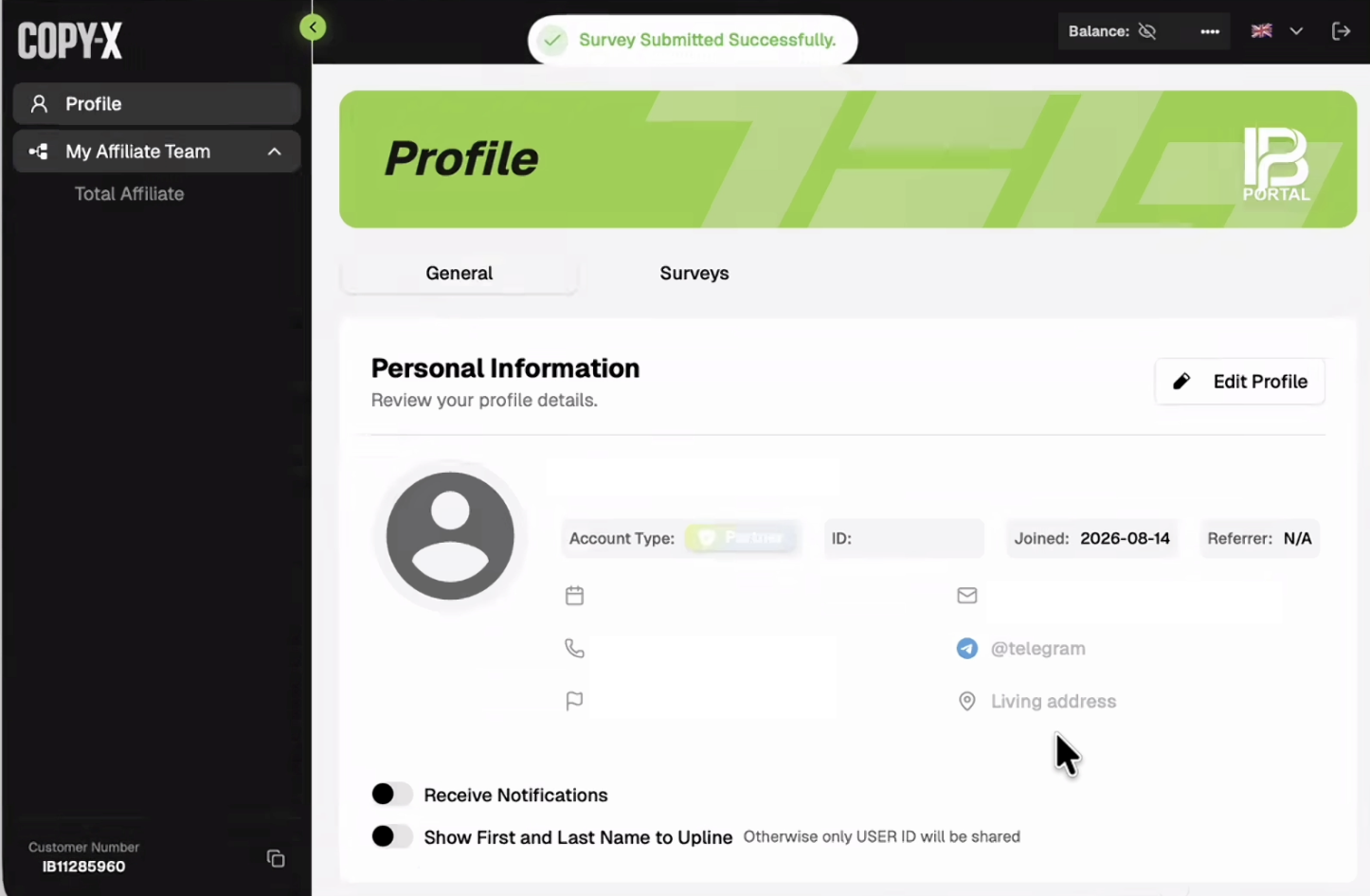
Your COPY-X profile after the suitability survey is completed
From your COPY-X dashboard, scroll to the CopyX Registration card and click "Register CopyX".

Click "Register CopyX" from your COPY-X dashboard
A window opens to link your account with TAG Markets. Create a password and click "Sync Account". On mobile, allow pop-ups for this site in your browser before you start; otherwise, this window may be blocked. If it does not appear, check your browser’s pop-up settings and try again.

Enter a password for the TAG Markets account, then sync it
Use a password that meets every requirement shown on screen.
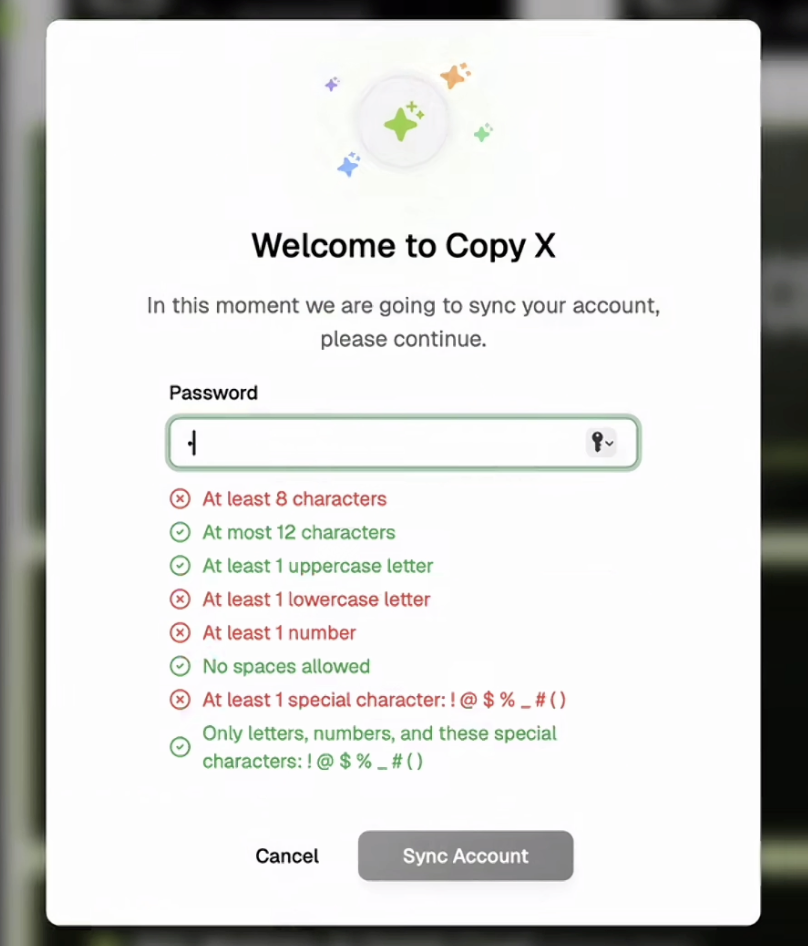
Make sure every password requirement is marked as complete
Wait while COPY-X verifies your information and synchronizes the account.
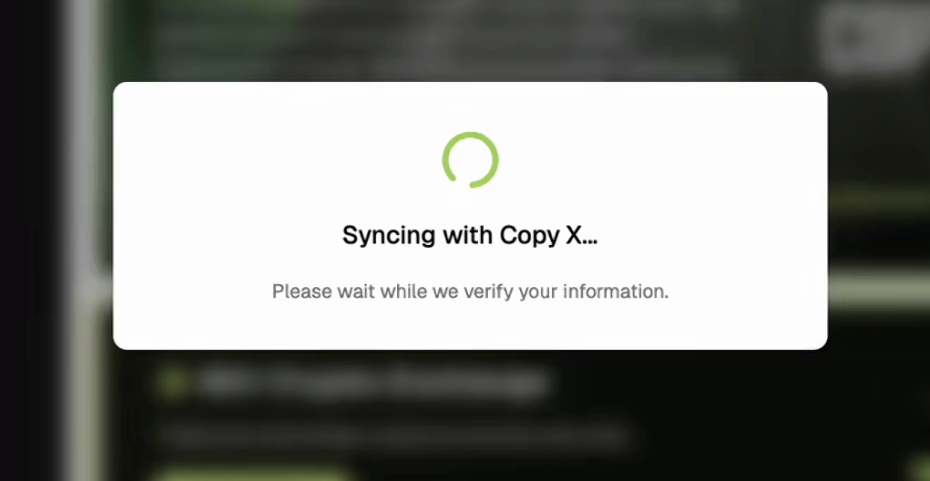
COPY-X verifies your information during account synchronization
When the sync is successful, acknowledge the confirmation and follow the email activation instructions for TAG Markets. If the email does not arrive, check your spam or junk folder.
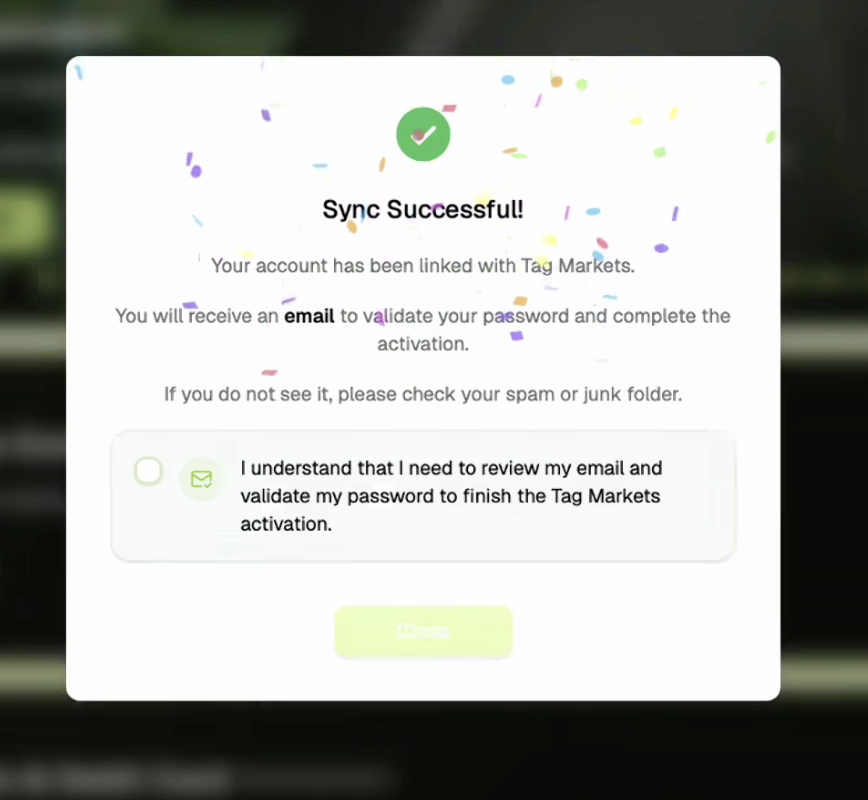
Your COPY-X account is linked with TAG Markets successfully
Back on the dashboard, click "Login to CopyX" to access the linked platform.
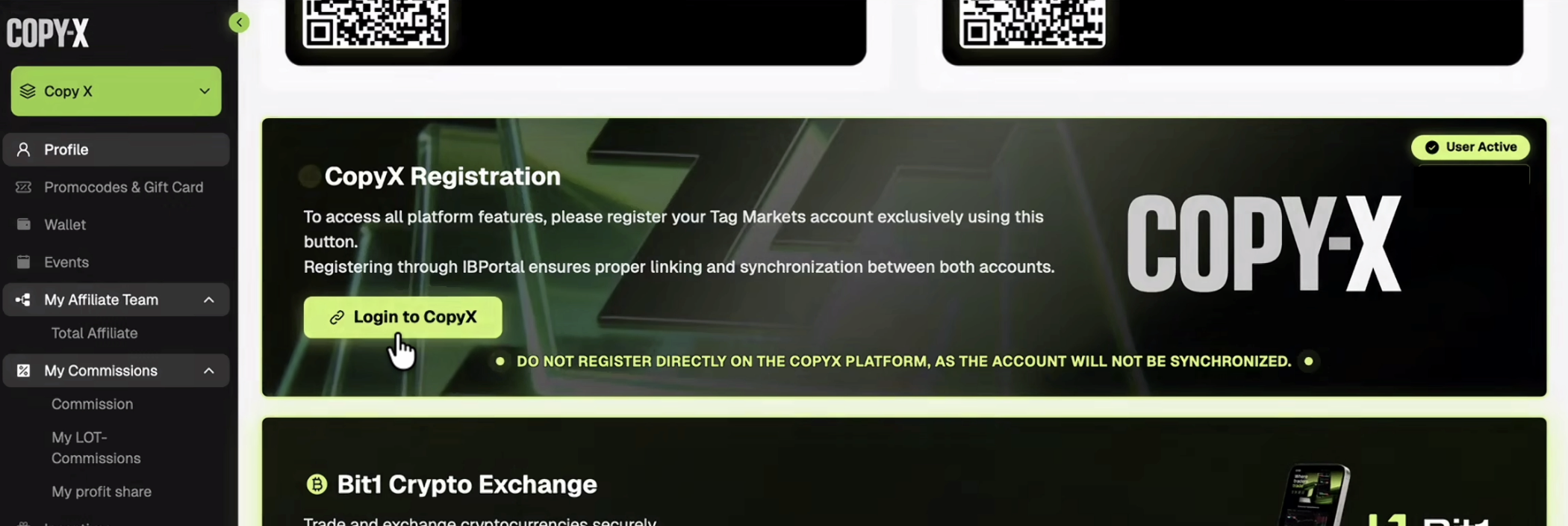
Use the "Login to CopyX" button after account linking
TAG Markets may first ask you to complete a brief browser security check.
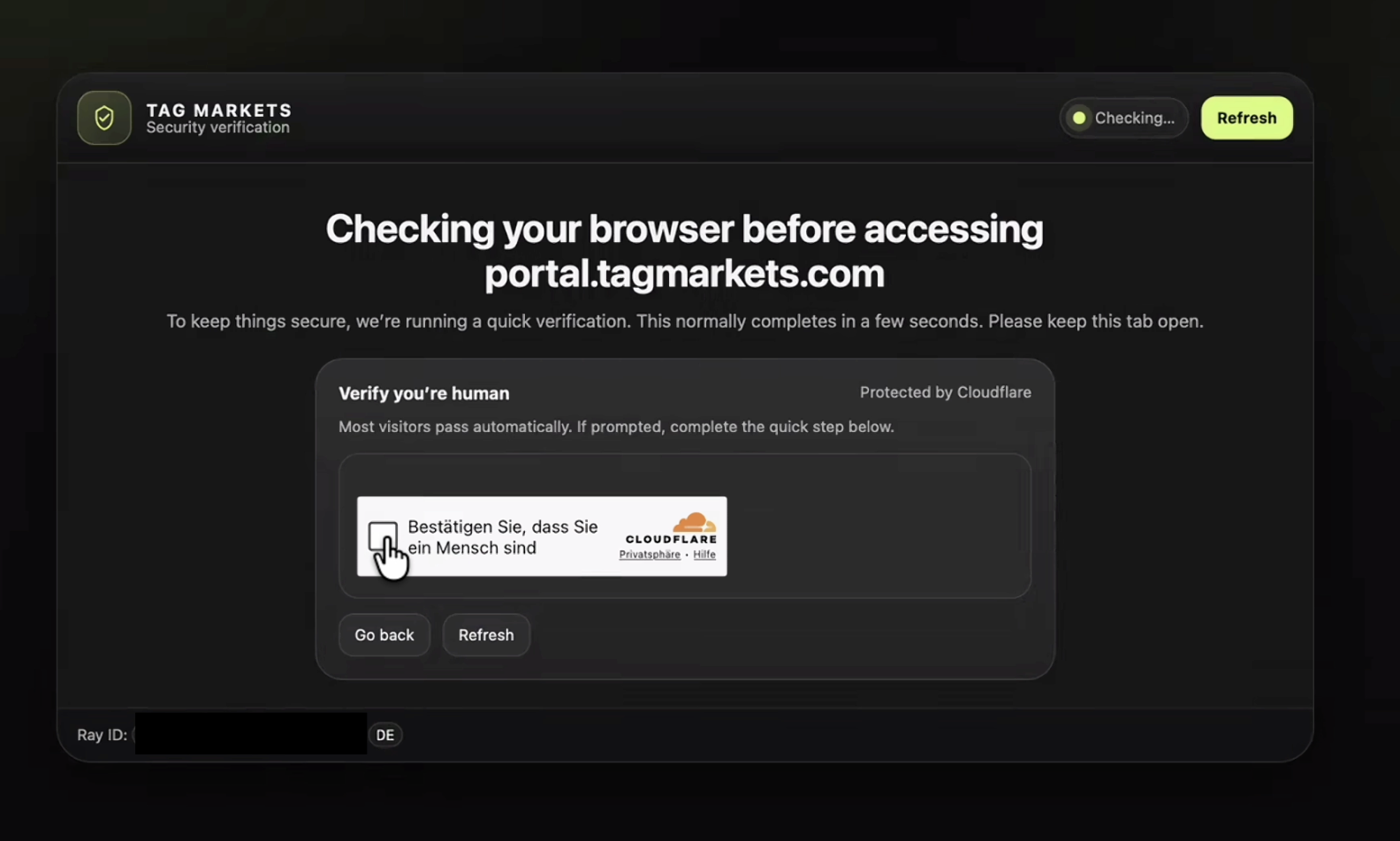
Complete the browser security check to continue to TAG Markets
Sign in to TAG Markets using the account credentials you created during synchronization.
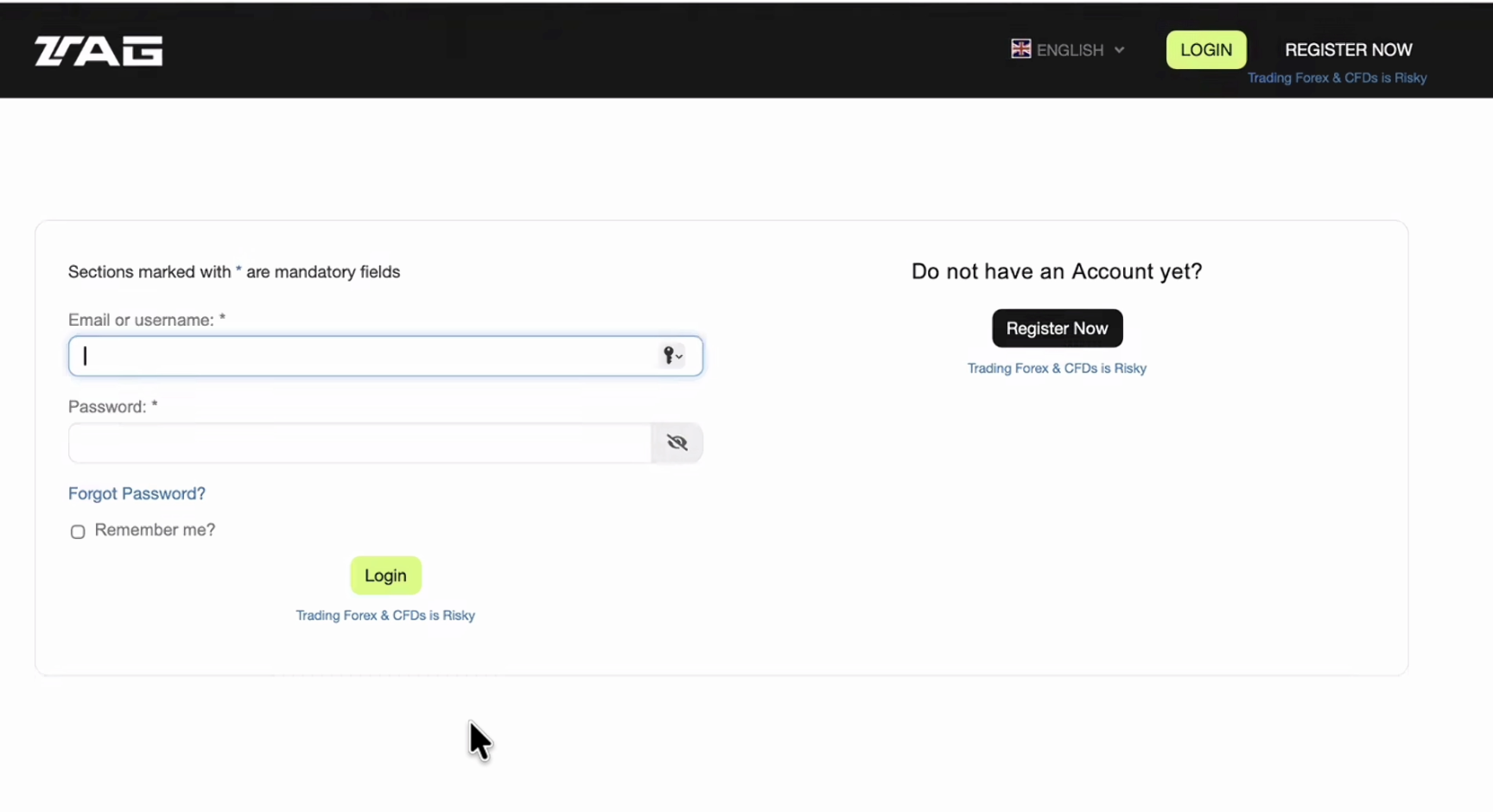
Enter your TAG Markets username or email and password
Complete the required financial information and click "Submit".
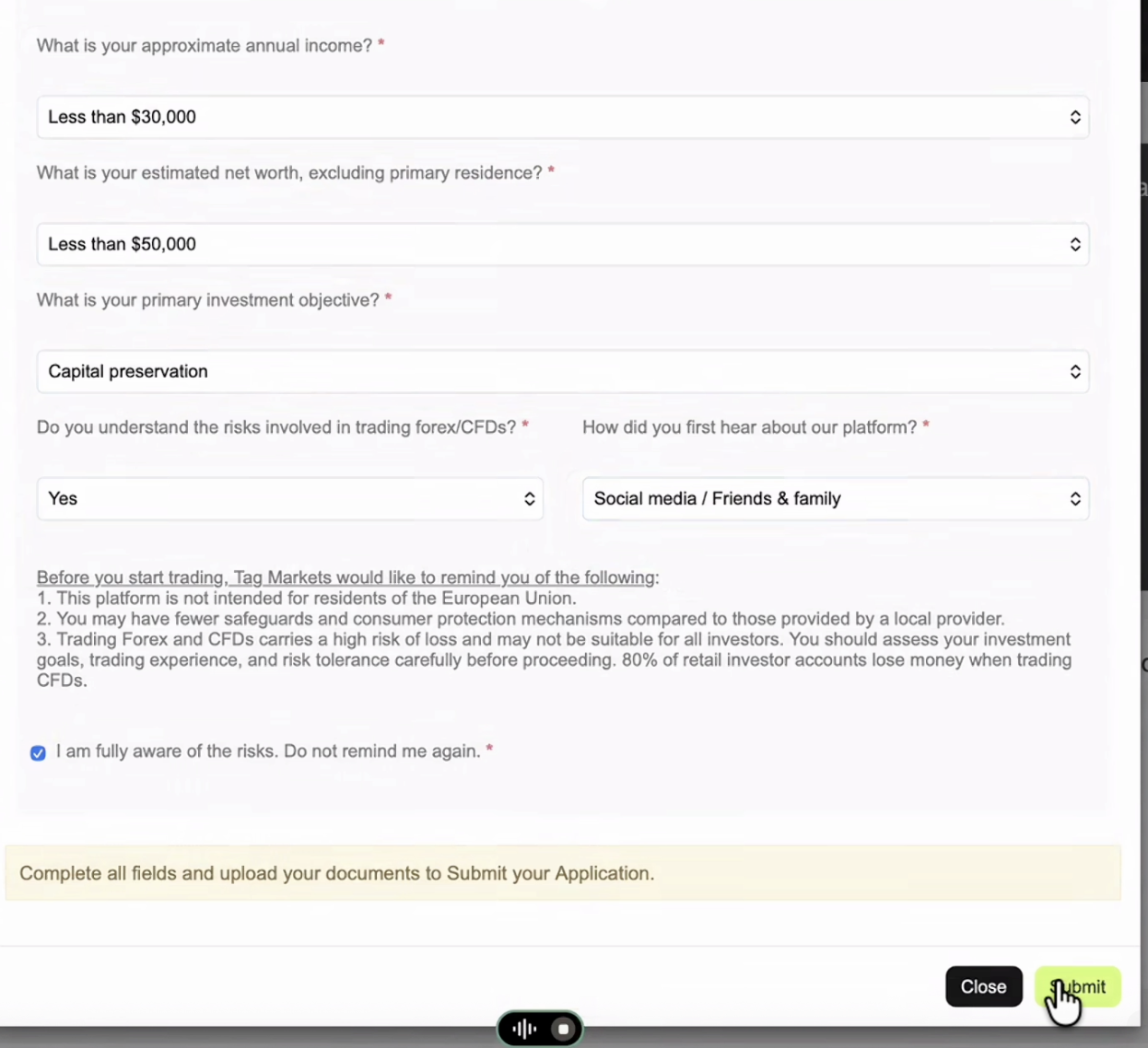
Complete your financial information and submit the application
On the TAG Markets start page, click "Upload documents" to begin the KYC process.
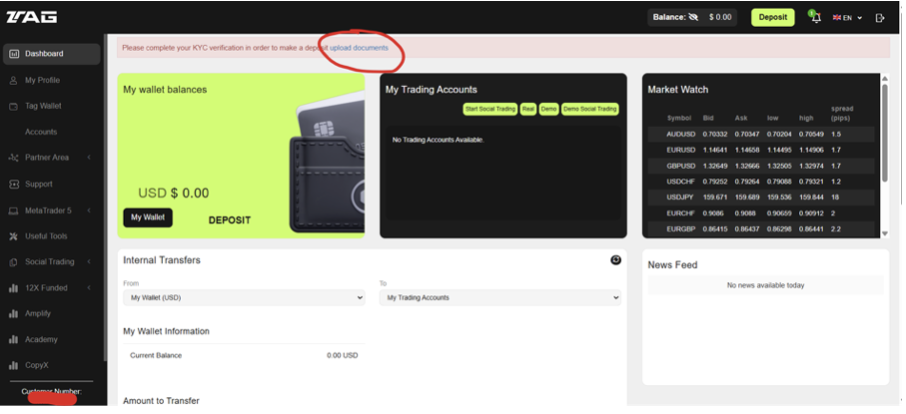
Click "Upload documents" to start KYC
The KYC is handled by Sumsub, a professional verification service. Click "Continue", then "Agree and Continue".

KYC via Sumsub — click "Agree and Continue"
You'll need to provide an identity document (passport, ID card, or driver's license) and complete a liveness check (a 3D face scan). Click "Start verification".
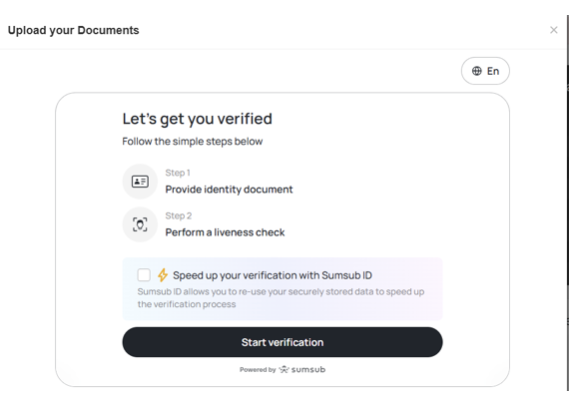
Fill in your details and choose "Continue" or "Continue on phone"
Fill in your details. You can choose "Continue on phone" — photographing the document is easier on mobile. A QR code will appear that you can scan to transfer the process to your phone.
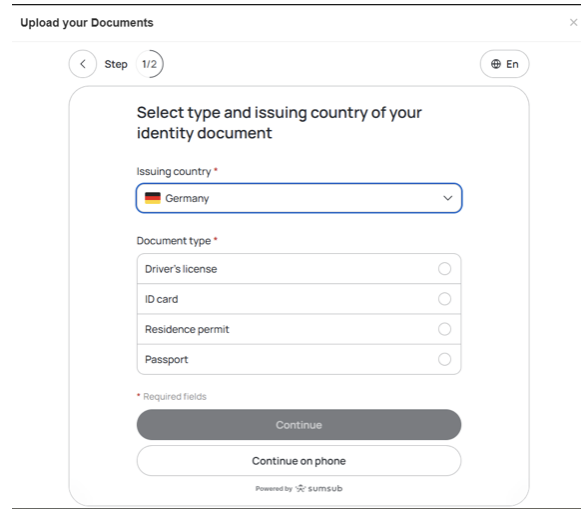
Scan the QR code to continue verification on your phone
Photograph your identity document — it must be easy to read, without reflections, and without cut corners. You may need to photograph both the front and back (and possibly a second page).
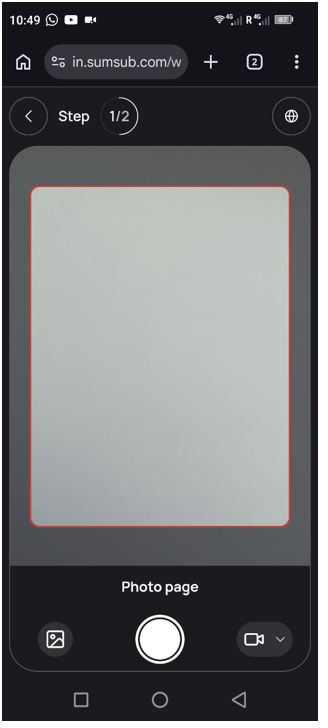
Take clear photos of your identity document
Next, the liveness check: fit your face into the marked oval and turn your head so your face can be scanned in 3D. This verifies you're a real, living person.
After that, the system checks your data — this usually takes about 2 minutes. Once complete, the process transfers back to your PC.
Reload the page and check under "My Profile" — confirm the Terms & Conditions. You should see 4 green checkmarks when everything is verified. Multi-factor authentication is optional.
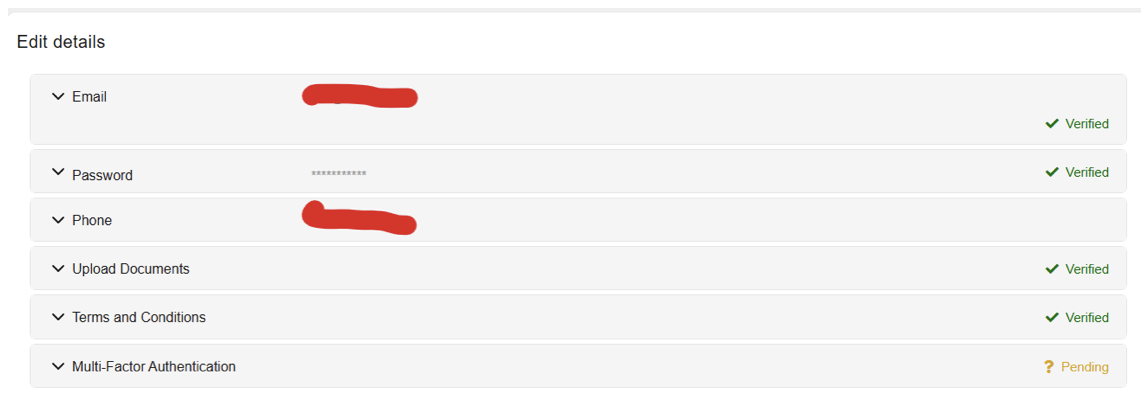
All 4 green checkmarks = KYC complete ✓
In TAG Markets, open "Deposit" to add funds. We recommend depositing with crypto.
Recommendation: You can transfer any cryptocurrency listed on the deposit page. If you are sending USDC, choose the matching network carefully — the network selected in TAG Markets must match the network used by your sending wallet or exchange.
New to buying crypto? You can use Kraken to buy USDC and transfer it to TAG Markets. Follow the Kraken tutorial for the full walkthrough.
Choose one of the pre-selected amounts shown, or select "Other amount" and enter another amount you want. For example, choose USD, enter $50, then click "Next".
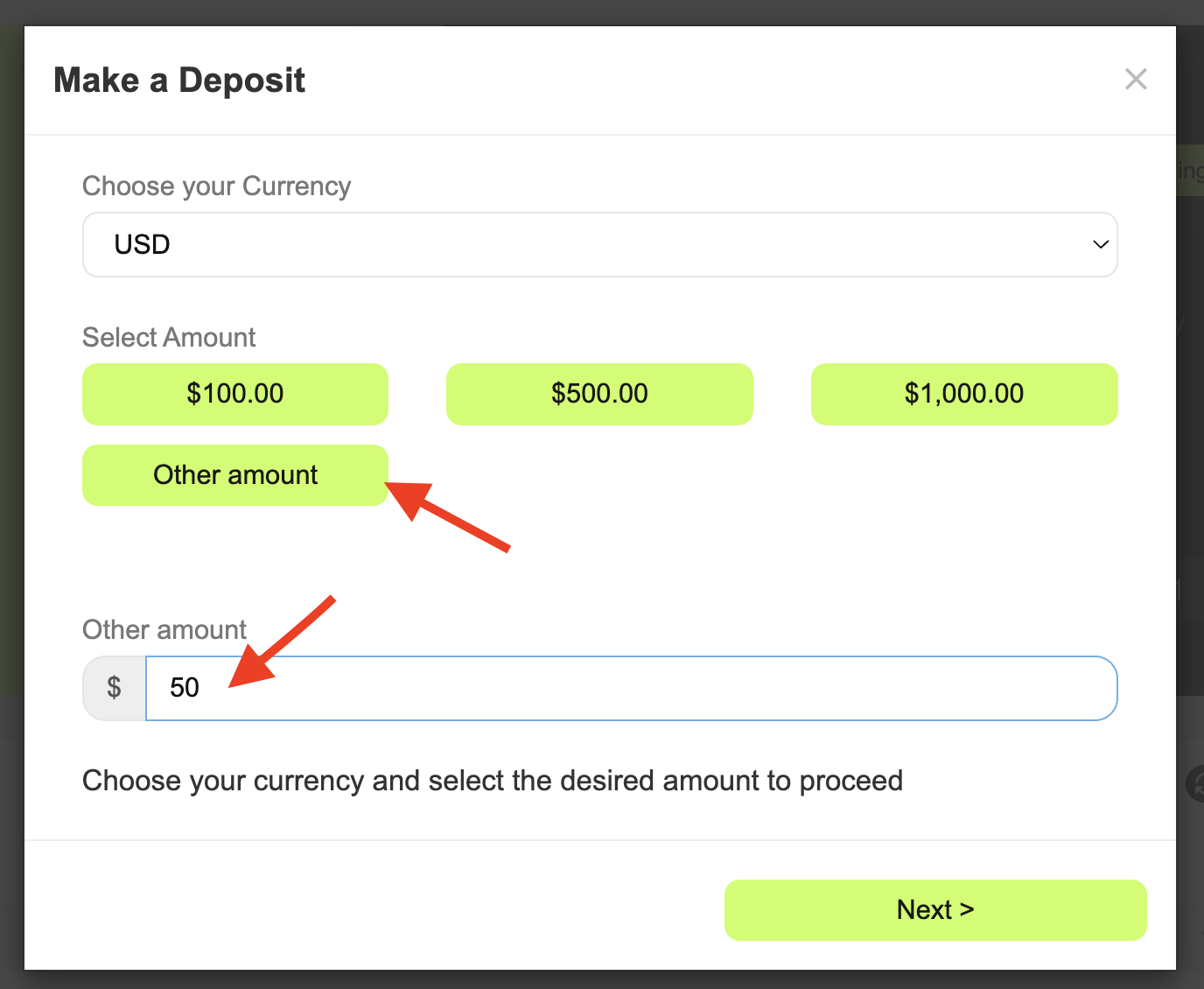
Choose a pre-selected amount or enter another amount — for example, $50 — then click "Next"
Choose "Crypto" as the payment method.
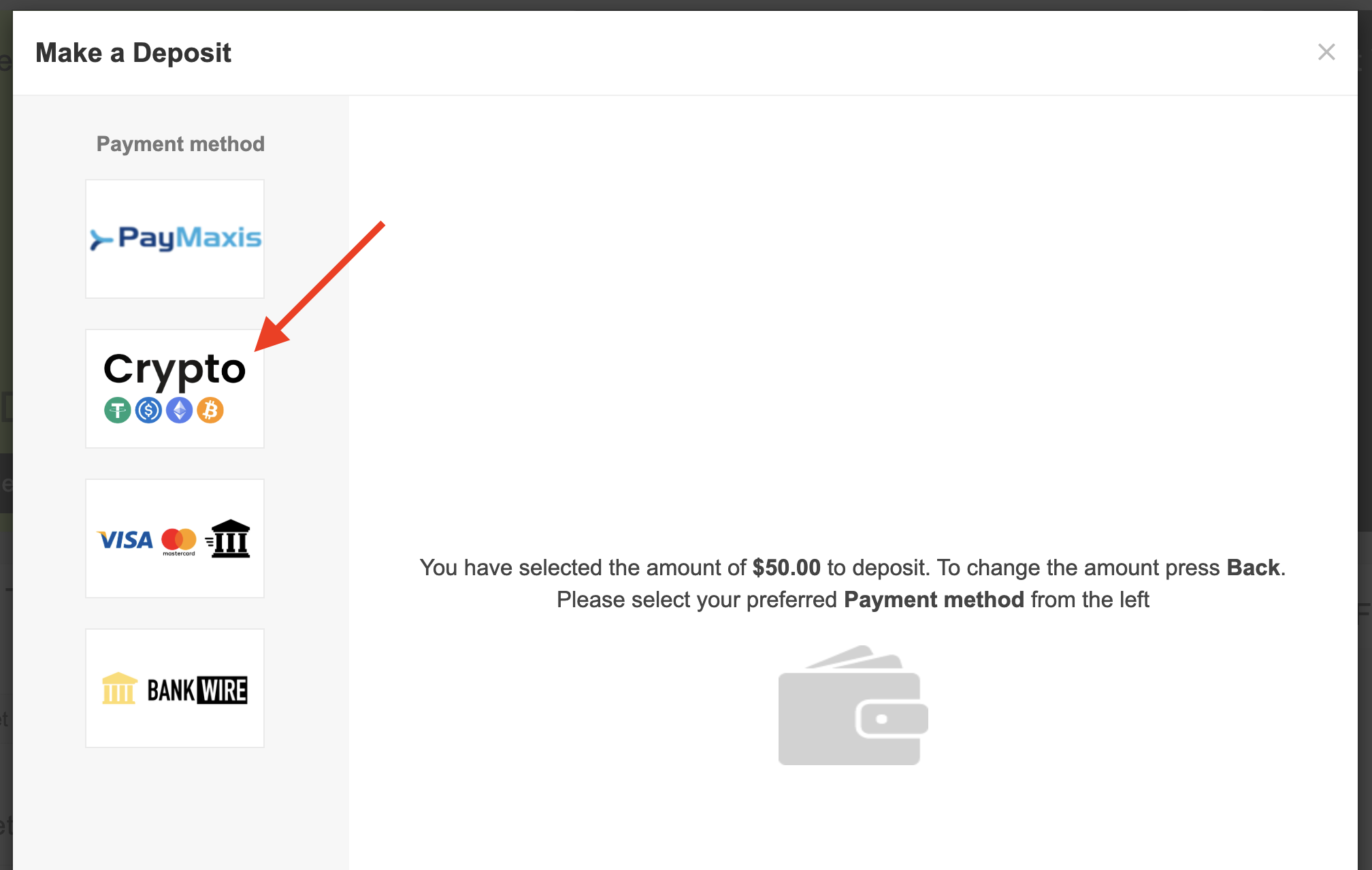
Select "Crypto" from the payment-method list
Confirm the $50 crypto deposit by clicking "Submit".
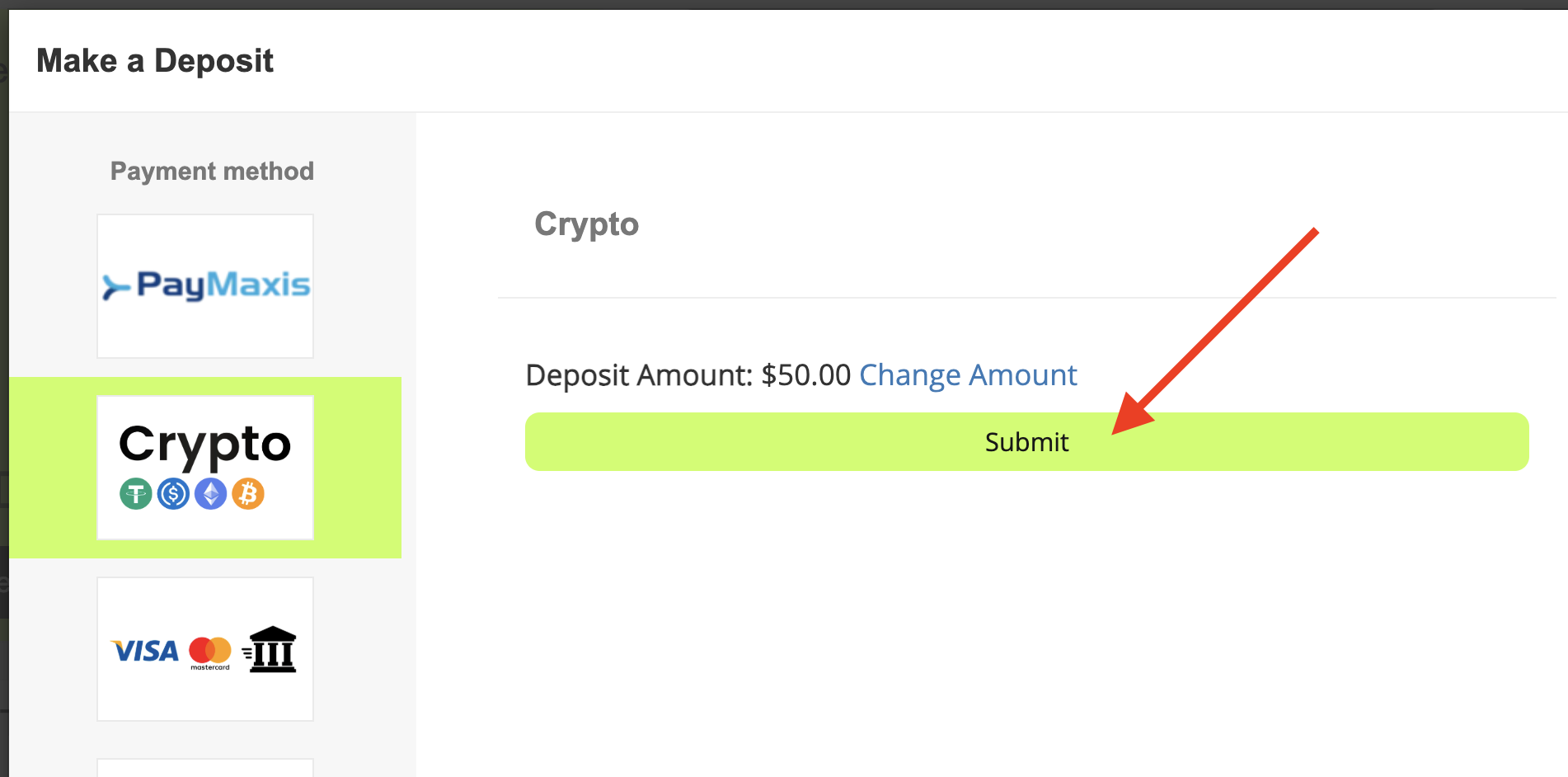
Review the amount and click "Submit"
Select the cryptocurrency you want to transfer. The page lists the available options, including Bitcoin, Ethereum, Tether, USD Coin, Binance Coin, and Solana.
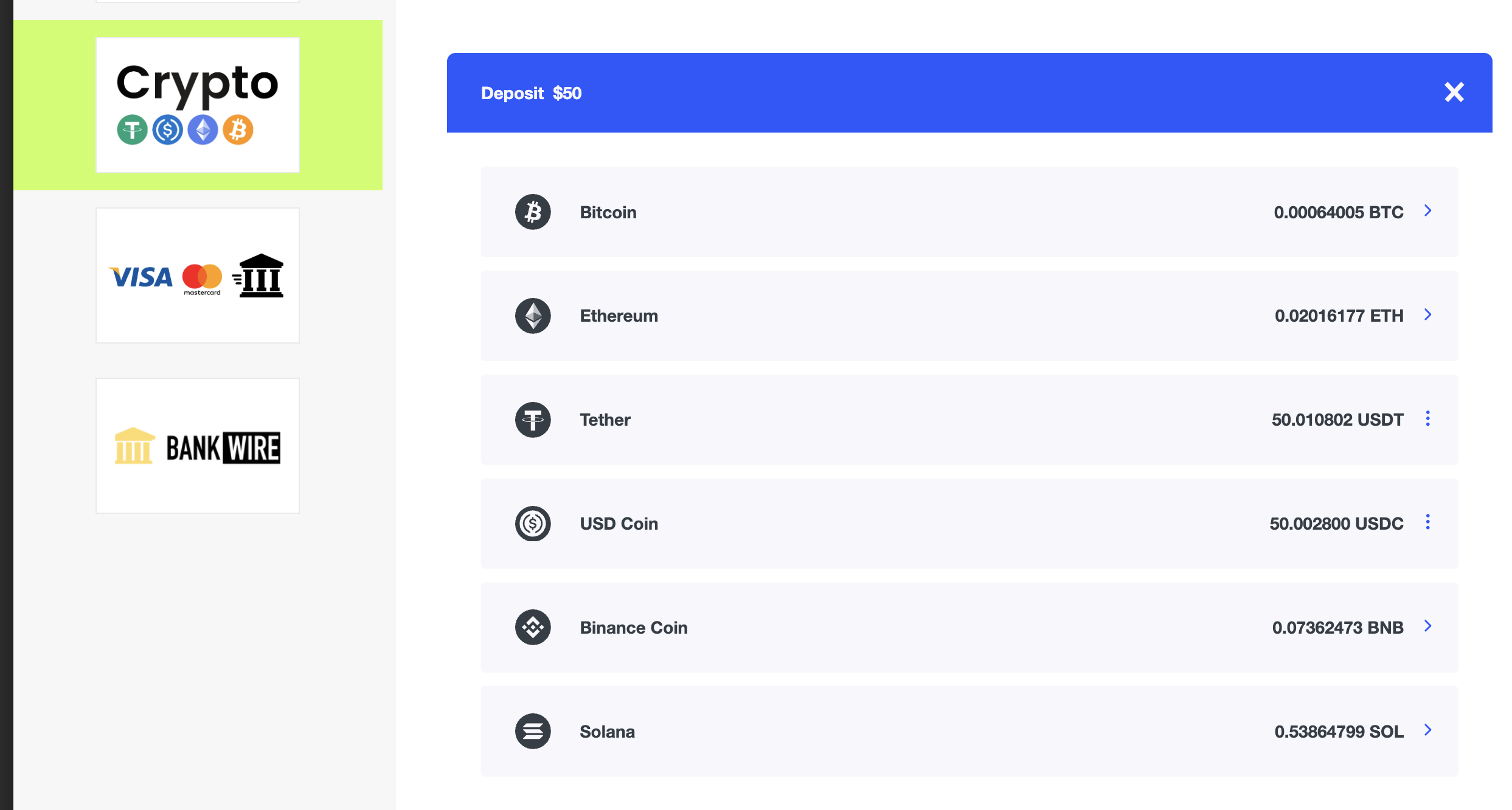
Choose the cryptocurrency you will send to TAG Markets
If you are sending USDC, TAG Markets accepts two networks: Ethereum and Polygon. We recommend Polygon because it is typically cheaper and much faster: funds can arrive in a few seconds, whereas Ethereum can take around two or three minutes before the balance is credited.
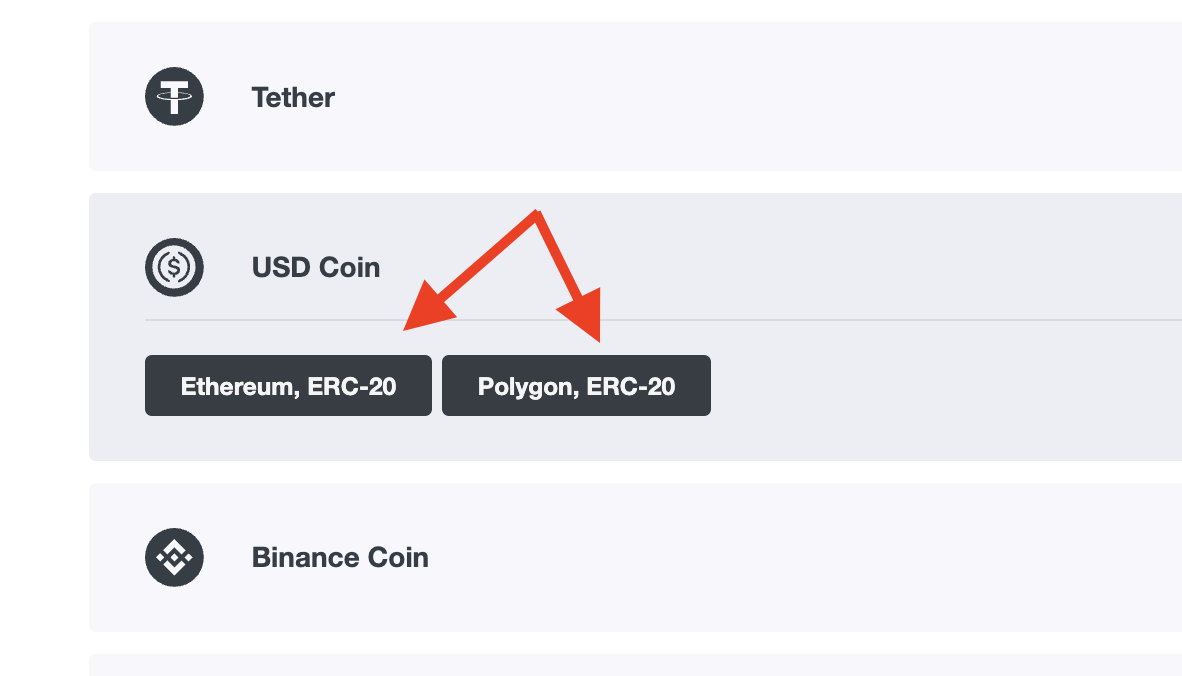
For USDC, select Polygon for a faster, lower-cost transfer
Before sending: Copy the deposit address shown by TAG Markets and use the exact same asset and network in your sending wallet or exchange. Sending the wrong asset or network may result in an unrecoverable loss.
Once your deposited funds appear in your TAG Markets balance, open "CopyX" in the left menu. In "Browse", find SONIC and click "Details".
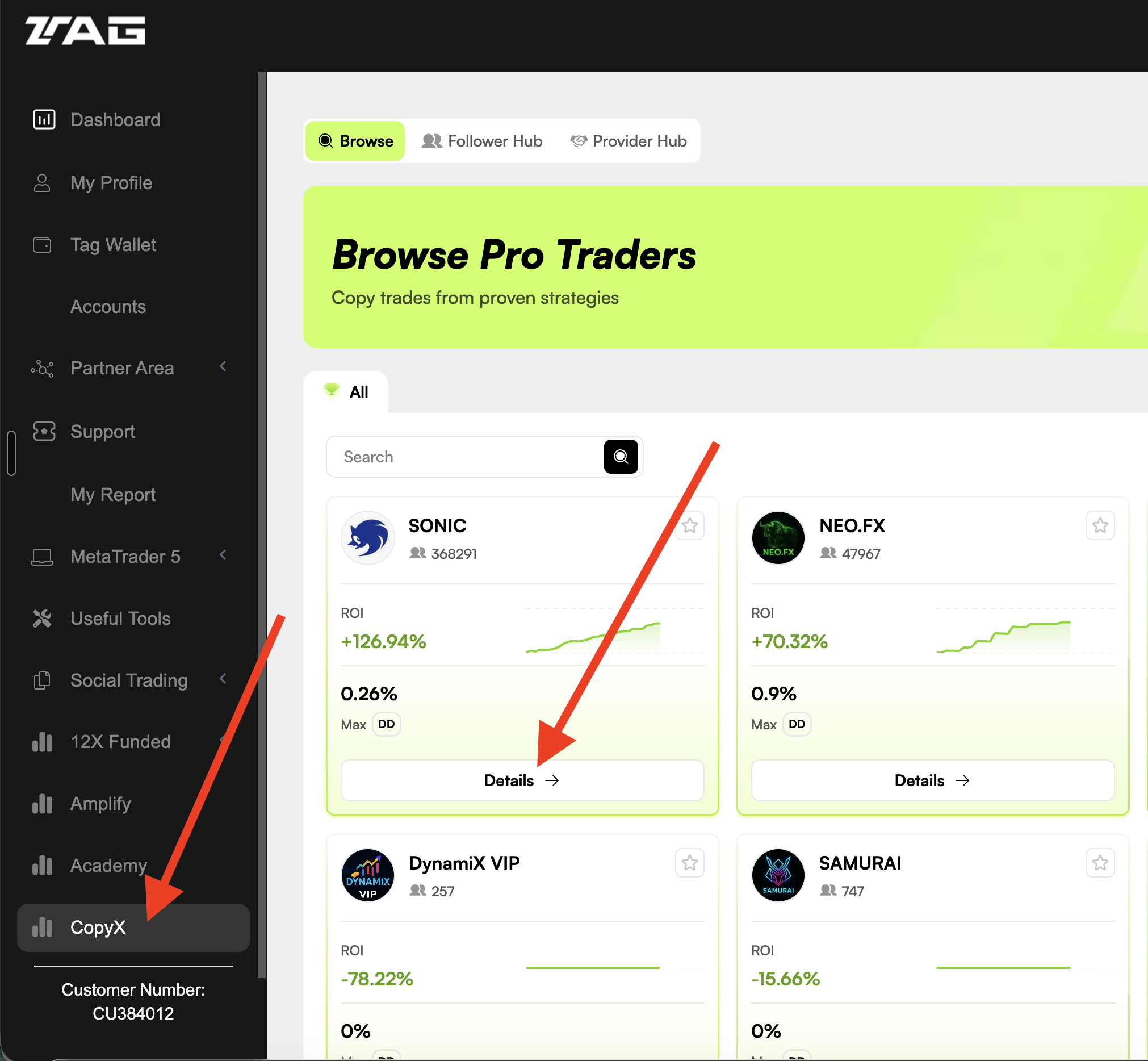
Open CopyX, find SONIC in Browse, and click "Details"
On the SONIC strategy page, click "Connect".
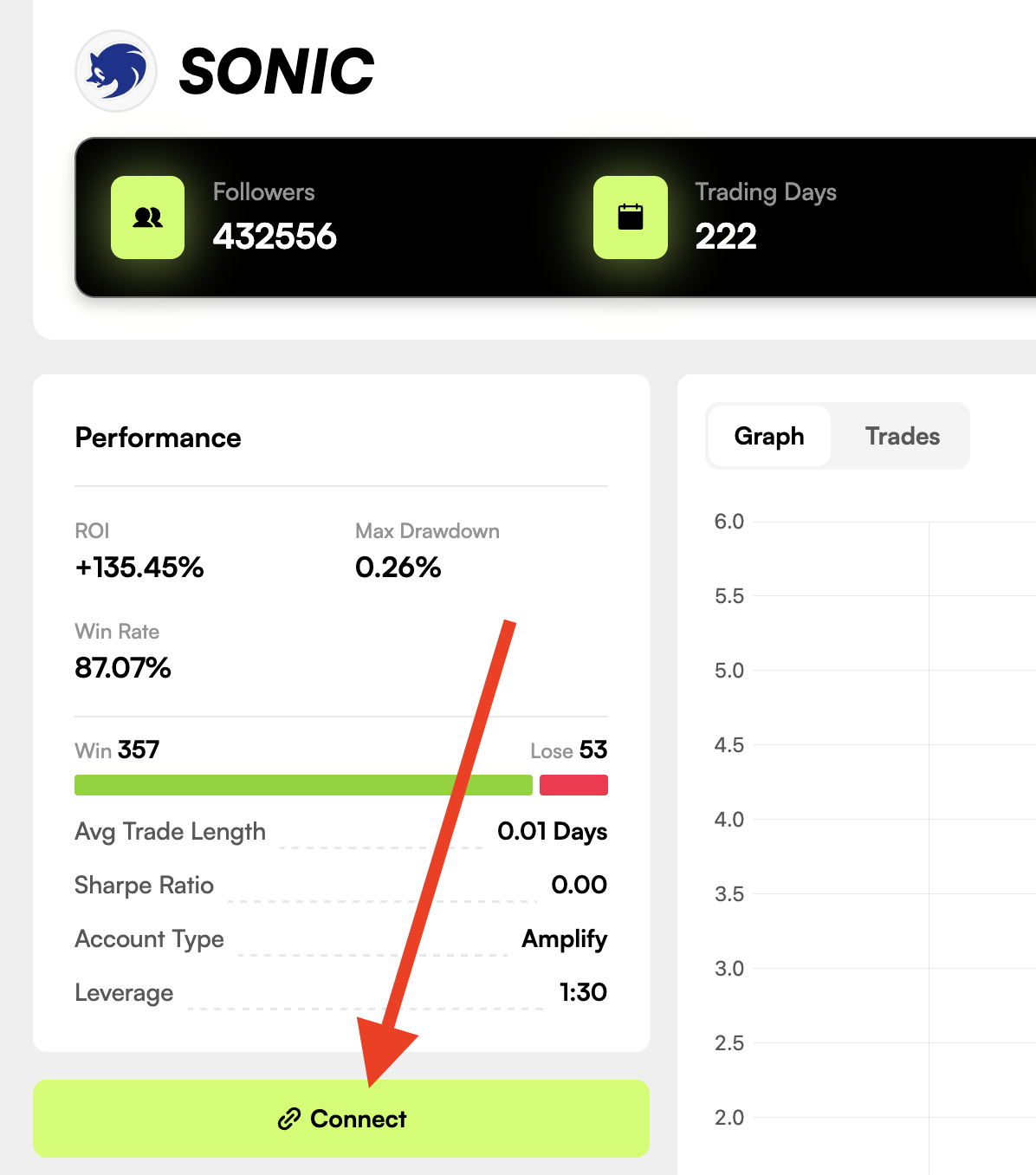
Click "Connect" to open the strategy-connection form
Enter the amount you want to connect — for this example, enter $50. Keep the account type set to "Amplify", then expand "Community Token".
#AiTech
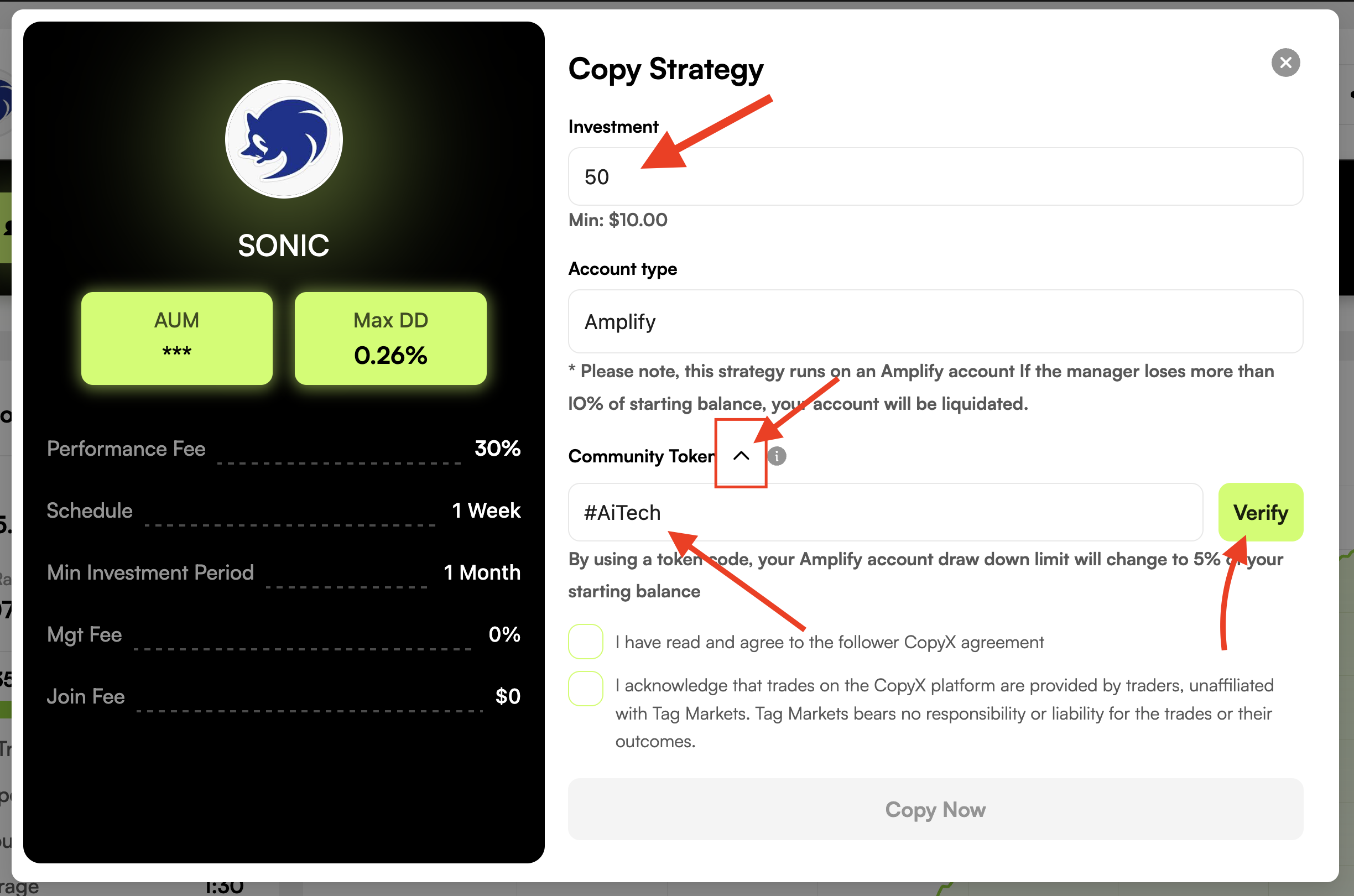
Enter $50, open "Community Token", type #AiTech, and click "Verify"
Under "HASH/GU-ID", enter "00000" and click "Submit".
00000
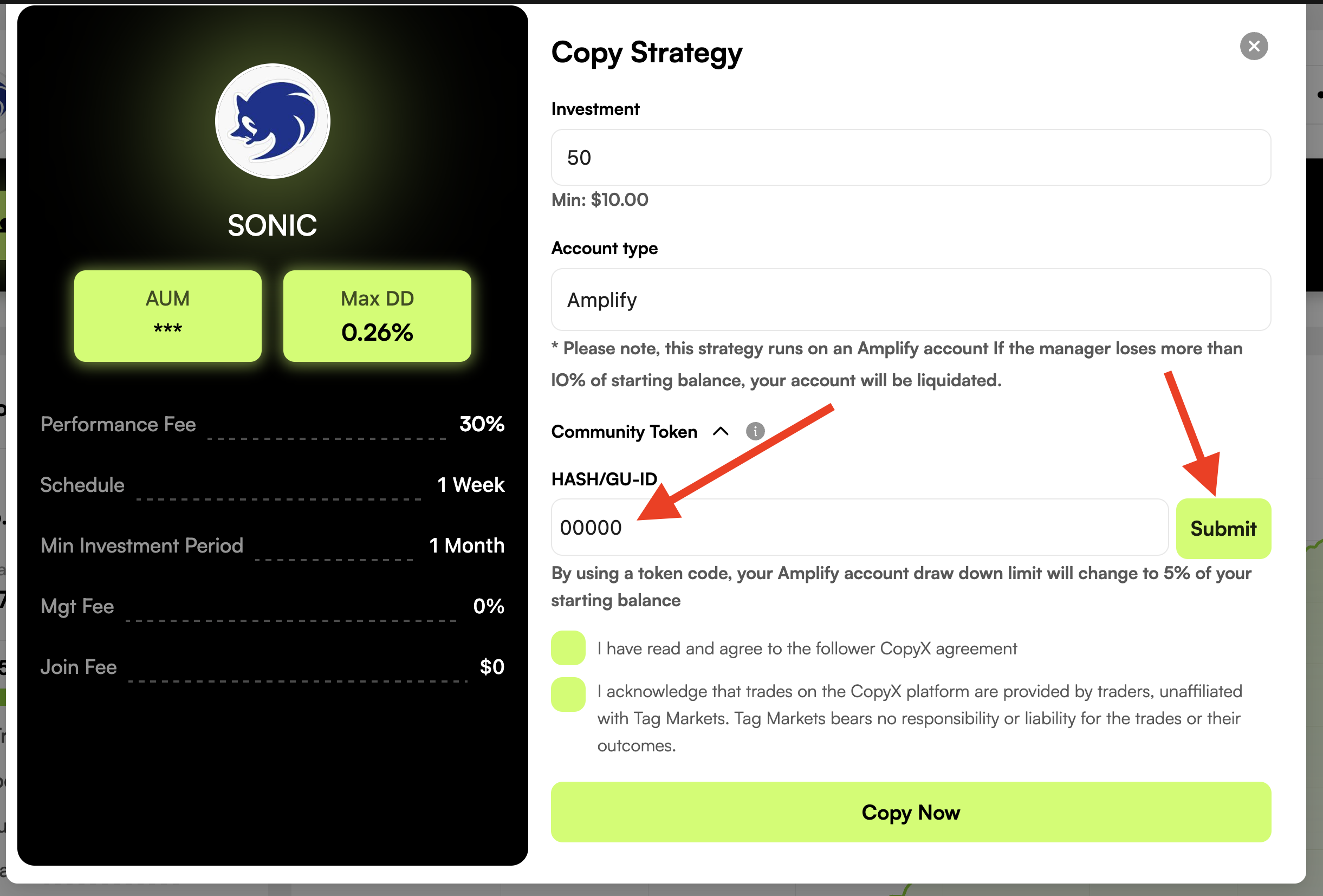
Enter 00000 in HASH/GU-ID and click "Submit"
When the verification checkmark appears, tick both agreement boxes and click "Copy Now" to connect your account to SONIC.
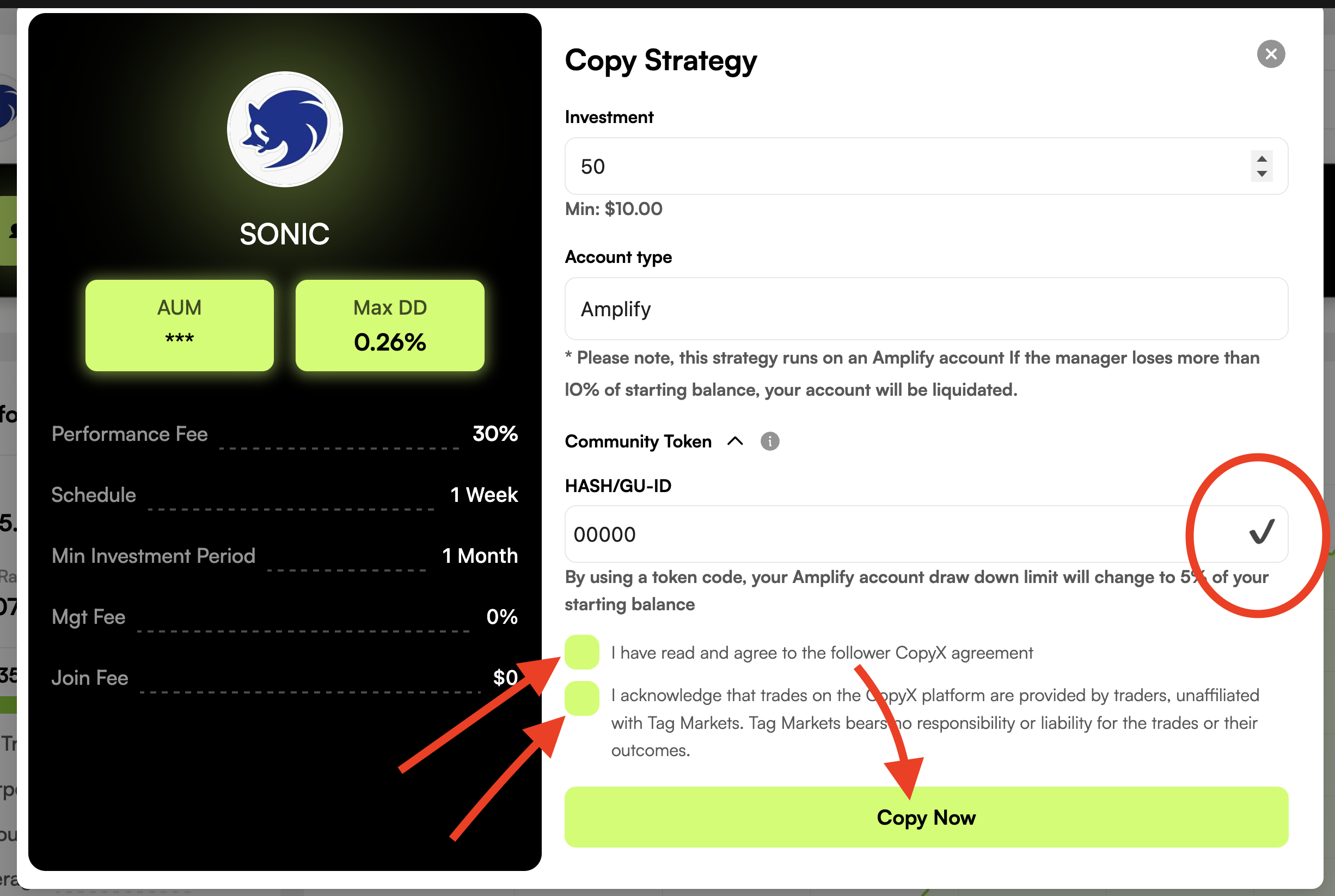
Confirm the two agreements and click "Copy Now"
To see your connected strategy, go to "Follower Hub", choose "Strategies", and find SONIC in the active list.
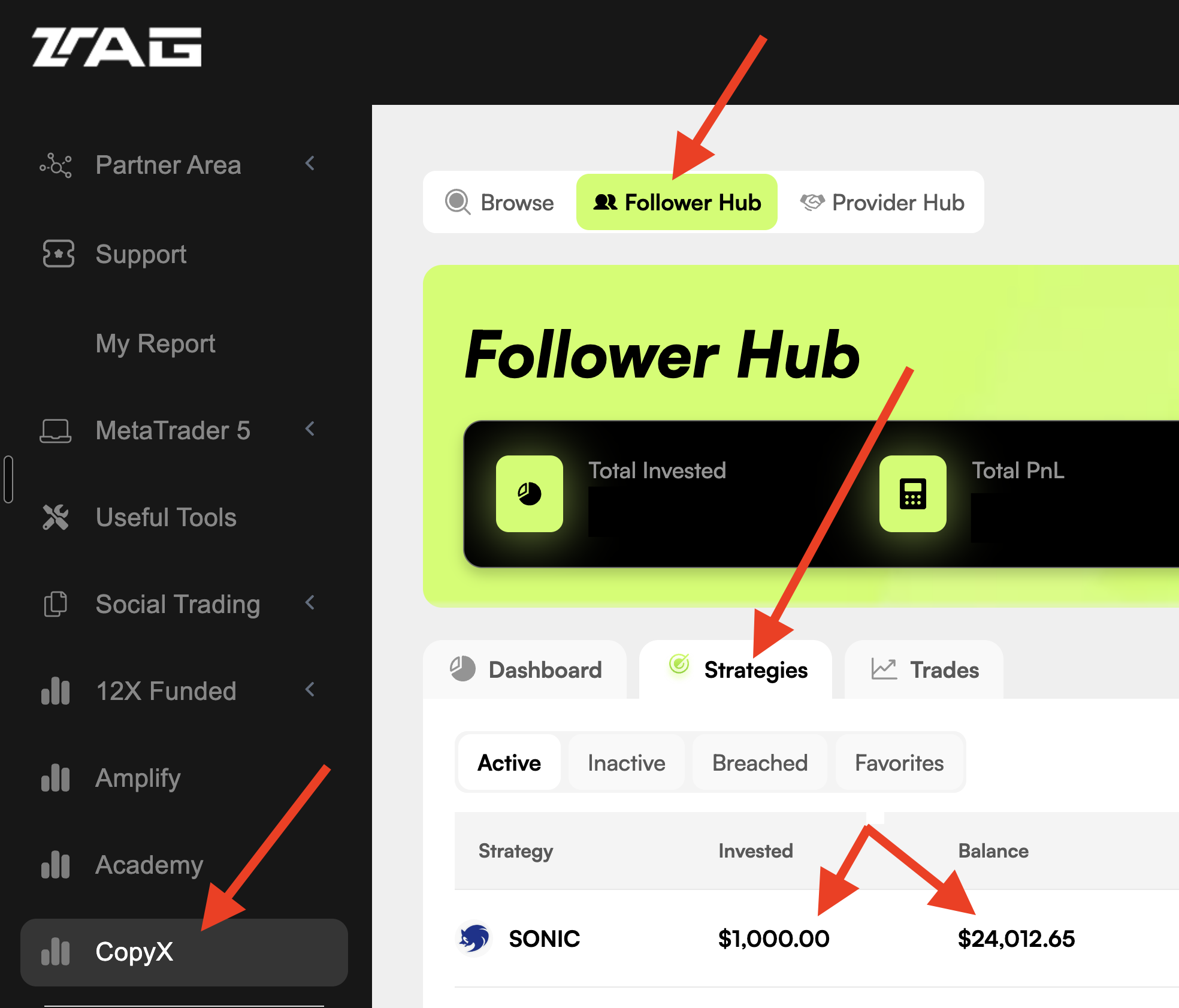
Open Follower Hub and choose "Strategies" to see SONIC
Verify your 24× activation: In the "Balance" column, confirm that SONIC shows 24 times your invested amount. This confirms that the Community Token and HASH/GU-ID have activated the 24× amplification.
From the SONIC strategy row, you can reinvest, make another deposit, or withdraw funds.
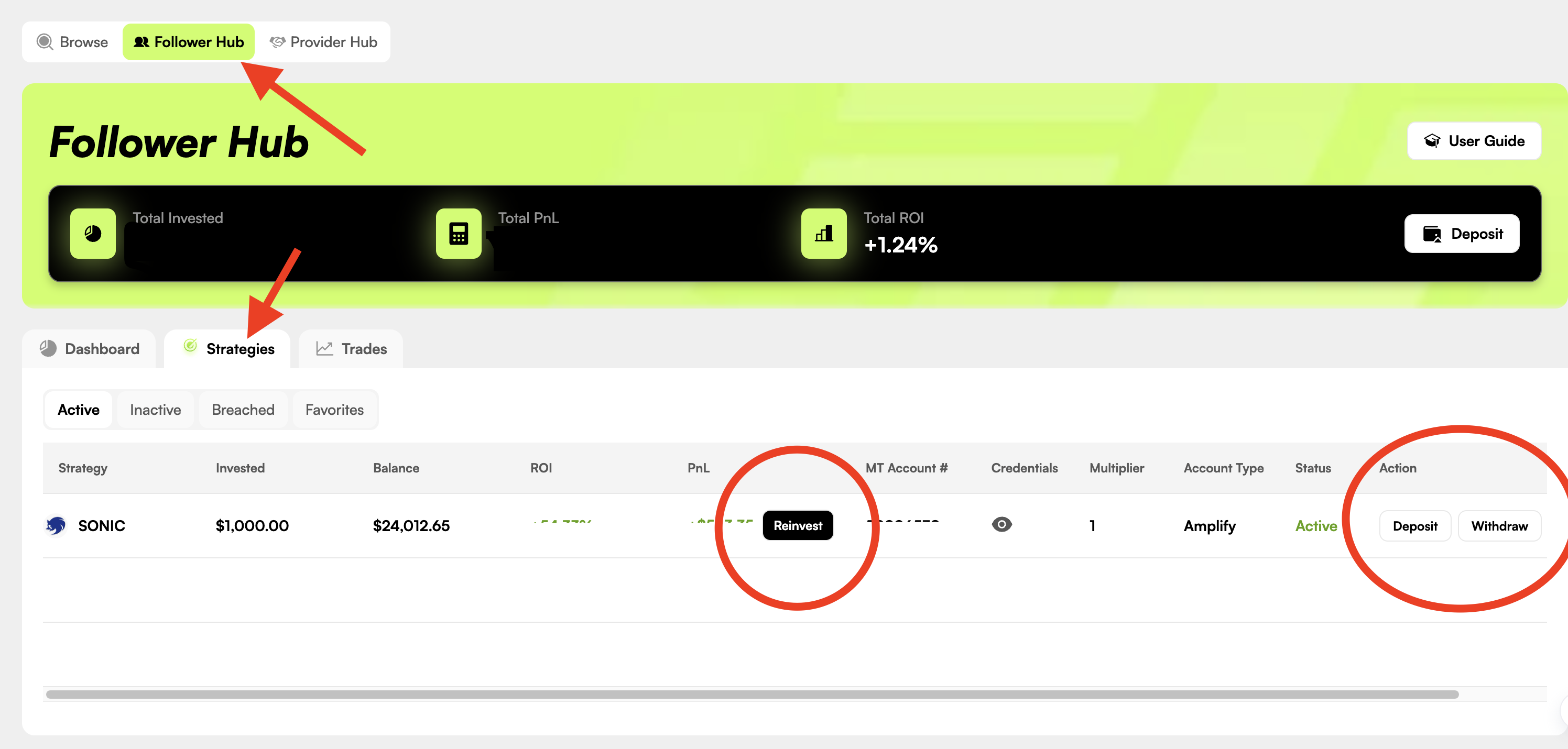
Manage your SONIC strategy with Reinvest, Deposit, and Withdraw
Your 24× SONIC AI account is now active. The professional trading team handles the rest — you can monitor every trade in real-time via MyFXBook and MetaTrader 5. Remember: crypto withdrawals are processed within 1 hour with zero fees.
Risk Disclaimer: Trading involves significant risk of loss. Past performance does not guarantee future results. This page is for educational and informational purposes only and does not constitute investment advice. Capital is at risk — you may lose some or all of your invested capital. Only invest what you can afford to lose entirely. The information about regulation, insurance, and institutional partnerships is based on claims provided by the platform and should be independently verified. This material is not directed at residents of jurisdictions where distribution would be contrary to local law or regulation.